> ## Documentation Index
> Fetch the complete documentation index at: https://agi-docs.pandas-ai.com/llms.txt
> Use this file to discover all available pages before exploring further.
# CLI Interface
> Interact with PandaAGI agents from your terminal
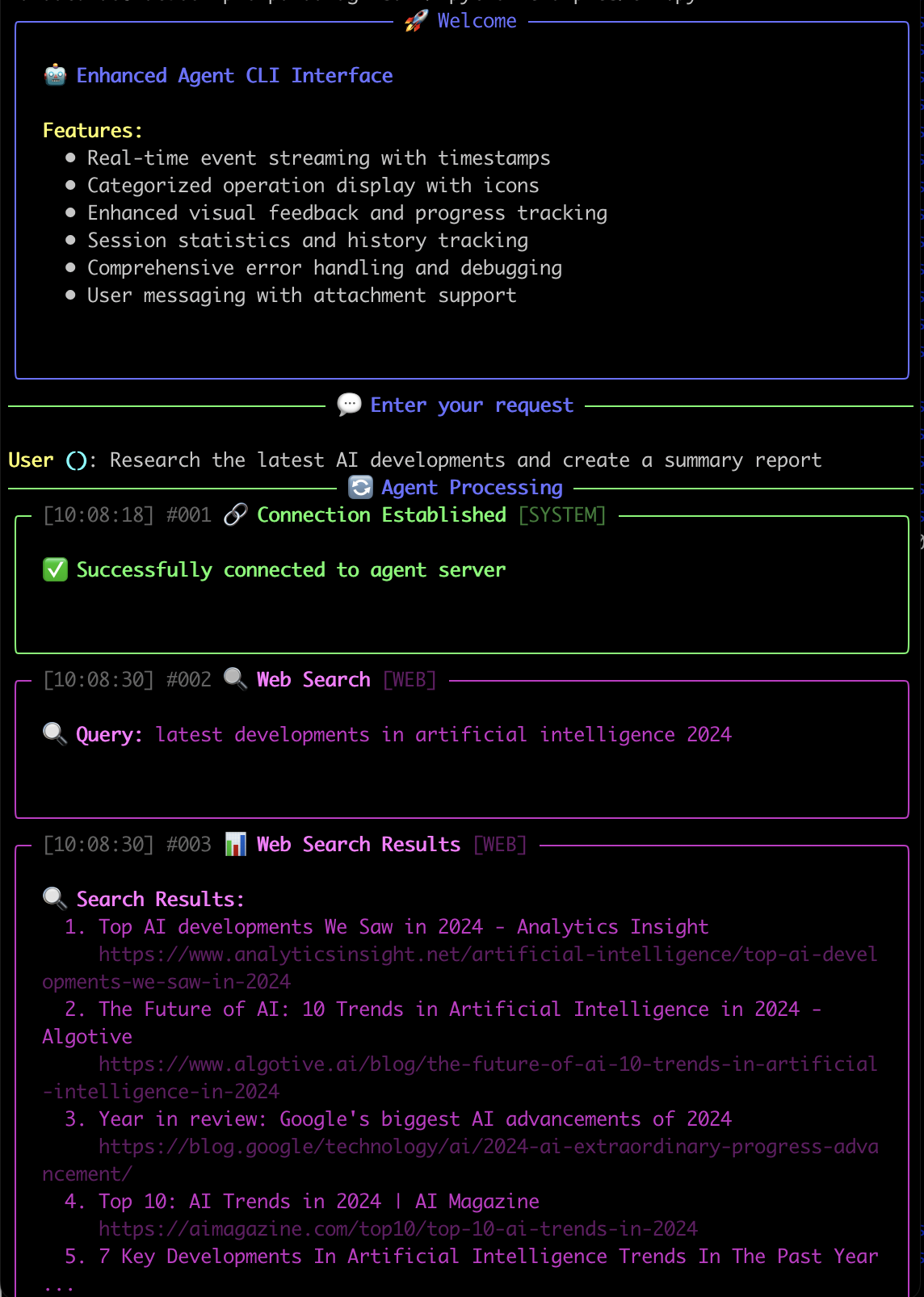
The PandaAGI CLI provides a powerful terminal-based interface for interacting with agents, perfect for developers who prefer command-line tools or need to integrate agents into scripts and automation workflows.
 ## Why Use the CLI?
Perfect for developers who prefer working in the terminal or need to integrate with scripts and automation workflows.
Minimal resource usage with the same powerful agent capabilities as the web interface.
Watch the agent's thinking process, actions, and results in real-time with rich visual feedback.
Resume conversations and keep context across multiple sessions with conversation IDs.
## Quick Start
Ensure you have Python 3.9+ and the PandaAGI SDK installed:
```bash theme={null}
poetry add panda_agi rich
```
The CLI requires the `rich` library for enhanced terminal output.
Set your PandaAGI API key as an environment variable:
```bash theme={null}
export PANDA_AGI_KEY="your-api-key"
```
You can add this to your shell profile for persistence.
Start the CLI with default settings:
```bash theme={null}
poetry run python examples/cli.py
```
This creates a workspace in `./my_agent_workspace` and starts an interactive session.
Type your message and press Enter to send it to the agent. You'll see the agent's thinking process, actions, and responses in real-time.
Type `help` to see all available CLI commands.
## Key Features
Watch the agent's thinking process, actions, and responses as they happen with color-coded event types and timestamps.
```python theme={null}
# Event streaming is built into the CLI
async for event in agent.run_stream(query):
# Process events in real-time
if isinstance(event, BaseStreamEvent):
event_type = event.type.value if hasattr(event.type, "value") else str(event.type)
# Apply appropriate styling based on event type
style_info = get_event_style(event_type)
# Render the event with appropriate colors and icons
render_event(event, style_info)
# Update session statistics
update_session_stats(event_type)
```
The CLI maintains conversation history within a session and allows you to resume conversations using conversation IDs.
```bash theme={null}
# Resume a previous conversation
poetry run python examples/cli.py --conversation-id "123e4567-e89b-12d3-a456-426614174000"
```
This is particularly useful for long-running tasks or when you need to continue work across different sessions.
The CLI supports special commands to control the session:
* `help` - Show available commands
* `clear` - Clear the screen
* `exit`, `quit`, or `q` - Exit the CLI
* `stats` - Show detailed session statistics
* `status` - Show current status and statistics
* `history` - Show event history summary
* `reset` - Reset session statistics
The CLI uses the `rich` library to provide enhanced visual feedback:
* Color-coded event categories (system, user, web, file, shell, image)
* Custom icons for different event types (🔗, 💬, 🔍, 📖, 💻, 🎨)
* Progress bars for long-running operations
* Syntax highlighting for code snippets
* Panels with rounded or heavy borders for visual organization
* Comprehensive session statistics and event history tracking
## Command Line Options
```bash Basic Usage theme={null}
python examples/cli.py [OPTIONS]
```
```bash Custom Workspace theme={null}
python examples/cli.py -w ./my_project_workspace
```
```bash Resume Conversation theme={null}
python examples/cli.py --conversation-id "123e4567-e89b-12d3-a456-426614174000"
```
## Why Use the CLI?
Perfect for developers who prefer working in the terminal or need to integrate with scripts and automation workflows.
Minimal resource usage with the same powerful agent capabilities as the web interface.
Watch the agent's thinking process, actions, and results in real-time with rich visual feedback.
Resume conversations and keep context across multiple sessions with conversation IDs.
## Quick Start
Ensure you have Python 3.9+ and the PandaAGI SDK installed:
```bash theme={null}
poetry add panda_agi rich
```
The CLI requires the `rich` library for enhanced terminal output.
Set your PandaAGI API key as an environment variable:
```bash theme={null}
export PANDA_AGI_KEY="your-api-key"
```
You can add this to your shell profile for persistence.
Start the CLI with default settings:
```bash theme={null}
poetry run python examples/cli.py
```
This creates a workspace in `./my_agent_workspace` and starts an interactive session.
Type your message and press Enter to send it to the agent. You'll see the agent's thinking process, actions, and responses in real-time.
Type `help` to see all available CLI commands.
## Key Features
Watch the agent's thinking process, actions, and responses as they happen with color-coded event types and timestamps.
```python theme={null}
# Event streaming is built into the CLI
async for event in agent.run_stream(query):
# Process events in real-time
if isinstance(event, BaseStreamEvent):
event_type = event.type.value if hasattr(event.type, "value") else str(event.type)
# Apply appropriate styling based on event type
style_info = get_event_style(event_type)
# Render the event with appropriate colors and icons
render_event(event, style_info)
# Update session statistics
update_session_stats(event_type)
```
The CLI maintains conversation history within a session and allows you to resume conversations using conversation IDs.
```bash theme={null}
# Resume a previous conversation
poetry run python examples/cli.py --conversation-id "123e4567-e89b-12d3-a456-426614174000"
```
This is particularly useful for long-running tasks or when you need to continue work across different sessions.
The CLI supports special commands to control the session:
* `help` - Show available commands
* `clear` - Clear the screen
* `exit`, `quit`, or `q` - Exit the CLI
* `stats` - Show detailed session statistics
* `status` - Show current status and statistics
* `history` - Show event history summary
* `reset` - Reset session statistics
The CLI uses the `rich` library to provide enhanced visual feedback:
* Color-coded event categories (system, user, web, file, shell, image)
* Custom icons for different event types (🔗, 💬, 🔍, 📖, 💻, 🎨)
* Progress bars for long-running operations
* Syntax highlighting for code snippets
* Panels with rounded or heavy borders for visual organization
* Comprehensive session statistics and event history tracking
## Command Line Options
```bash Basic Usage theme={null}
python examples/cli.py [OPTIONS]
```
```bash Custom Workspace theme={null}
python examples/cli.py -w ./my_project_workspace
```
```bash Resume Conversation theme={null}
python examples/cli.py --conversation-id "123e4567-e89b-12d3-a456-426614174000"
```
| Option | Short | Description | Default |
| ------------------- | ----- | ----------------------------------------------------- | ---------------------- |
| `--workspace` | `-w` | Path to agent workspace directory | `./my_agent_workspace` |
| `--conversation-id` | | Resume an existing conversation by ID | `None` |
| `--no-timestamps` | | Disable timestamp display in events | `False` |
| `--width` | | Panel width in characters | `120` |
| `--compact` | `-c` | Use compact display mode for better performance | `False` |
| `--verbose` | `-v` | Show additional debug information and full tracebacks | `False` |
The CLI respects the same environment variables as the SDK:
```bash theme={null}
# Set your API key
export PANDA_AGI_KEY="your-api-key"
# Set custom API endpoint (optional)
export PANDA_AGI_API_URL="https://your-custom-endpoint.com"
```
These can be set in your shell profile or before running the CLI.
## Visual Event Categories
* 🔗 **Connection Established**
* 🎯 **Task Completed**
* ⚙️ **System Operations**
* 💬 **User Notification**
* ❓ **User Question**
* 👤 **User Input**
* 🔍 **Web Search**
* 📊 **Web Search Results**
* 🌐 **Web Navigation**
* 📄 **Web Page Content**
* 📖 **File Read**
* ✏️ **File Write**
* 🔄 **File Replace**
* 🔎 **File Find**
* 📁 **File Explore**
* 💻 **Shell Execute**
* 👁️ **Shell View**
* ⌨️ **Shell Write**
* 🤖 **Agent Actions**
* 🎨 **Image Generation**
* 🧠 **Thinking Process**
## Advanced Usage
### Session Statistics
The CLI automatically tracks and can display comprehensive session statistics using the `stats` command:
```
┌─────────────── Detailed Session Statistics ───────────────┐
│ Metric │ Value │
│ Session Runtime │ 00:15:32 │
│ Total Events │ 127 │
│ User Messages │ 8 │
│ Agent Operations │ 119 │
│ Errors Encountered │ 2 │
│ Events/Minute │ 8.2 │
└─────────────────────────────────────────────────────────┘
```
You can also view a summary of events by category using the `history` command:
```
┌─────────────── Event History Summary ───────────────┐
│ Category │ Count │ Icon │
│ System │ 5 │ ⚙️ │
│ User │ 8 │ 👤 │
│ Web │ 42 │ 🌐 │
│ File │ 23 │ 📁 │
│ Shell │ 37 │ 💻 │
│ Image │ 12 │ 🎨 │
└─────────────────────────────────────────────────────┘
```
### Workspace Management
The CLI automatically creates and manages a workspace directory at `./my_agent_workspace` unless specified otherwise. This workspace is where the agent stores files and other artifacts it creates during operation.
You can specify a custom workspace directory:
```bash theme={null}
poetry run python examples/cli.py -w ./my_custom_workspace
```
This is useful when working on different projects or when you want to isolate agent workspaces.
The CLI supports resuming conversations across sessions using the conversation ID:
```bash theme={null}
# First session - note the conversation ID in the output
poetry run python examples/cli.py
# Later session - resume with the same conversation ID
poetry run python examples/cli.py --conversation-id "123e4567-e89b-12d3-a456-426614174000"
```
This allows for long-running tasks to be continued even after closing the terminal.
### Workspace Contents
The workspace directory contains all artifacts created during agent operations:
* Files created or modified by the agent
* Downloaded web content and search results
* Generated images and other media
* Temporary files and execution artifacts
* Conversation history and context data
## Next Steps
Return to the quickstart guide to explore more capabilities
Try the web-based chat interface for a graphical experience
Dive deeper into the event system that powers both the CLI and chat interfaces